Fust Survival Controls and Inventory Shortcuts
Last updated:
Find the default Fust Survival controls and learn how to move, split, equip and organize items in your inventory and containers.
Movement, Interaction and Menu Keys
Movement and general controls
| Key | Action |
|---|---|
| WASD | Move |
| Space | Jump |
| Hold Shift | Sprint |
| C | Toggle crouch |
| Hold Alt | Look around without turning your character |
| U | Release or lock the mouse cursor |
| 1–6 or mouse wheel | Select a hotbar item |
Interaction
| Control | Action |
|---|---|
| E | Use, open or collect the targeted object; drink where the interaction is available |
| F | Pick up a placed item when its prompt offers that action |
| G | Drop the item held in your hand |
| Left-click | Swing or gather with a held Rock |
Menus and help
| Key | Action |
|---|---|
| Tab | Open Inventory |
| Q | Open Crafting |
| M | Open the map |
| T | Open Teams |
| Enter | Open chat |
| P | Open Settings |
| Esc | Close panels |
| H | Hide on-screen control help |
| F3 | Reopen the beginner guide |
Change Keybinds and Reopen the Guide
Press P to open Settings and change your keybinds. To reopen the beginner guide, press F3 or select GUIDE in the upper-left corner. Press H to hide the on-screen control help.
Move, Split and Equip Items
Personal inventory
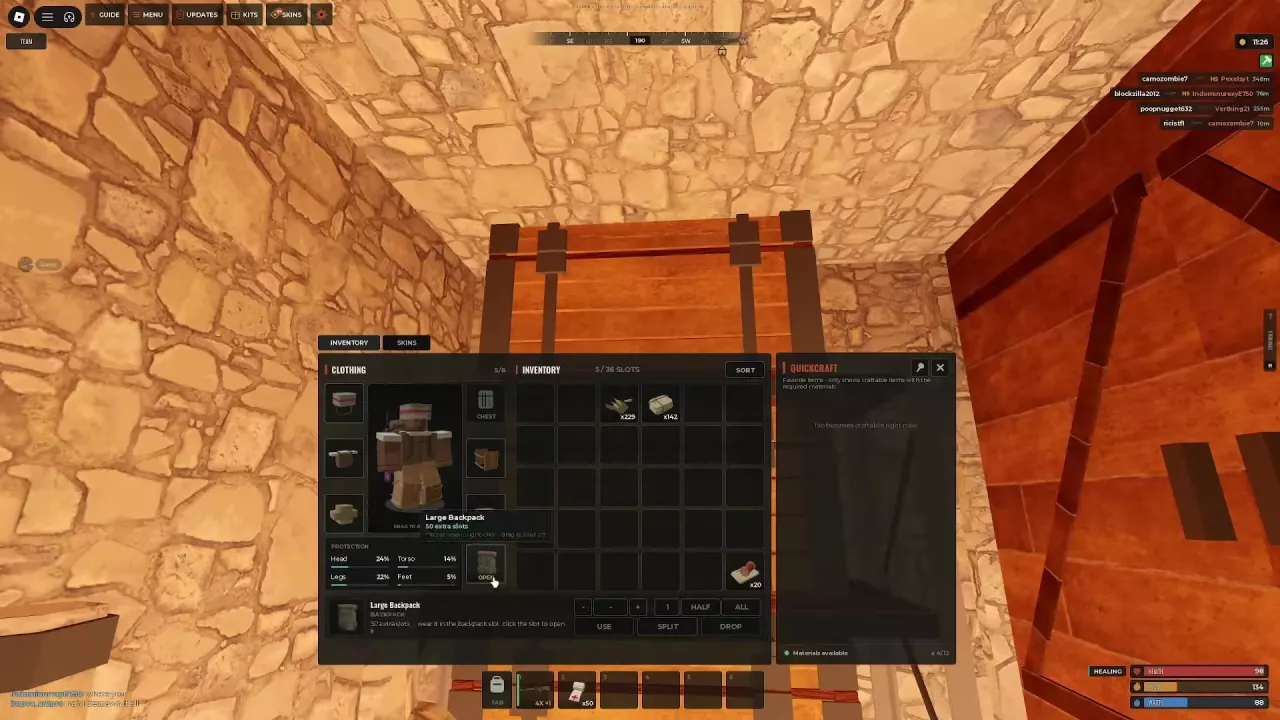
Press Tab to open Inventory. Right-click an item to move it between your inventory and hotbar, or Shift-right-click a stack to split it. You can also drag items into position.
To wear clothing or armor, select it and use WEAR, right-click it, double-click it, or drag it onto your character. Check the equipment slot and the Head, Torso, Legs and Feet protection values after changing gear. An item placed in an occupied slot can replace the existing piece and return it to your inventory. See the armor guide for protection and equipment choices.
Open containers
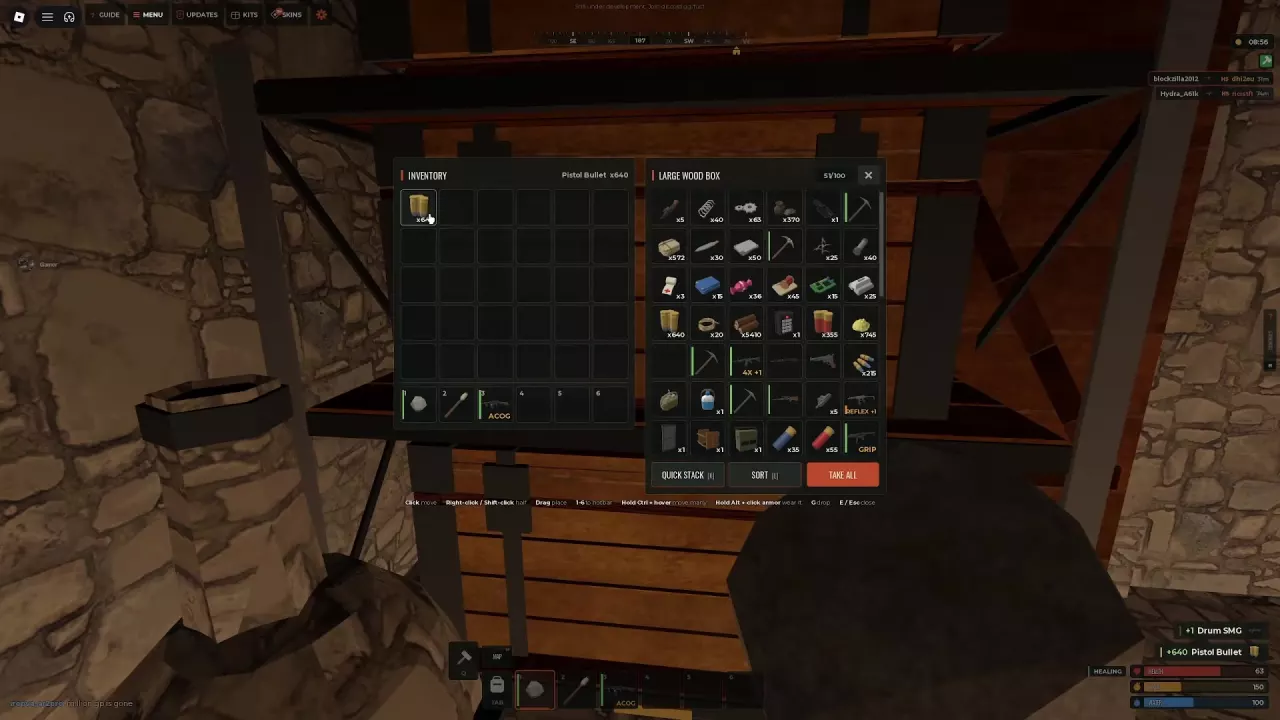
| Control | Action |
|---|---|
| Click an item | Transfer it between your inventory and the container |
| Right-click or Shift-click a stack | Transfer half |
| Drag an item | Place it in a chosen position |
| Hold Ctrl and hover over items | Transfer several items |
| Press 1–6 on an item | Place it in the corresponding hotbar slot |
| Alt-click armor | Wear it directly |
| E or Esc | Close the container |
Use TAKE ALL to collect container contents when you have room.
Quick Stack, Sort and Drop
In a container, use Quick Stack to stack items quickly and Sort to organize the container. The displayed Quick Stack key can be K or X; Sort is shown as L. Use the drop key printed in the open container interface: it can be G or M. Your personal inventory also has a SORT control.
To choose a specific amount in your personal inventory, select the item, adjust the quantity or use HALF or ALL, then choose SPLIT or DROP.
For example, to carry 160 rounds from a box containing 1,280 Pistol Bullets:
- Transfer half from the box. You now carry 640 rounds, with 640 left in the box.
- Transfer half of the carried stack back to the box, leaving 320 carried.
- Transfer half of that stack back again. You carry 160 rounds and the box holds 1,120.
Inventory Space and Quickcraft
If your inventory is full, equip a backpack for extra space, move supplies into a storage box, or sort and consolidate your items. See backpack sizes and equipping for their capacity and pickup conditions, or storage boxes and shelves for organizing a base.
Quickcraft sits beside the inventory and equipment areas. Press Q to open Crafting and star a recipe, then gather its required materials. Press Tab to return to Inventory: the favorite appears in Quickcraft when you have the materials needed. You can favorite up to 12 recipes. If Quickcraft is empty, star a recipe and check its material requirements. For crafting requirements and queues, see crafting and workbenches.